Hexpad

A lean Windows app for the Ajazz AKP03E stream dock. Every key, button and knob does what you tell it, and the keys can show live numbers. A real desktop app: no browser inside, no account, no telemetry.

Download for Windows v2.0.0 · 16 Oct 2026

Drawn by Hexpad's own renderer, with made-up data.

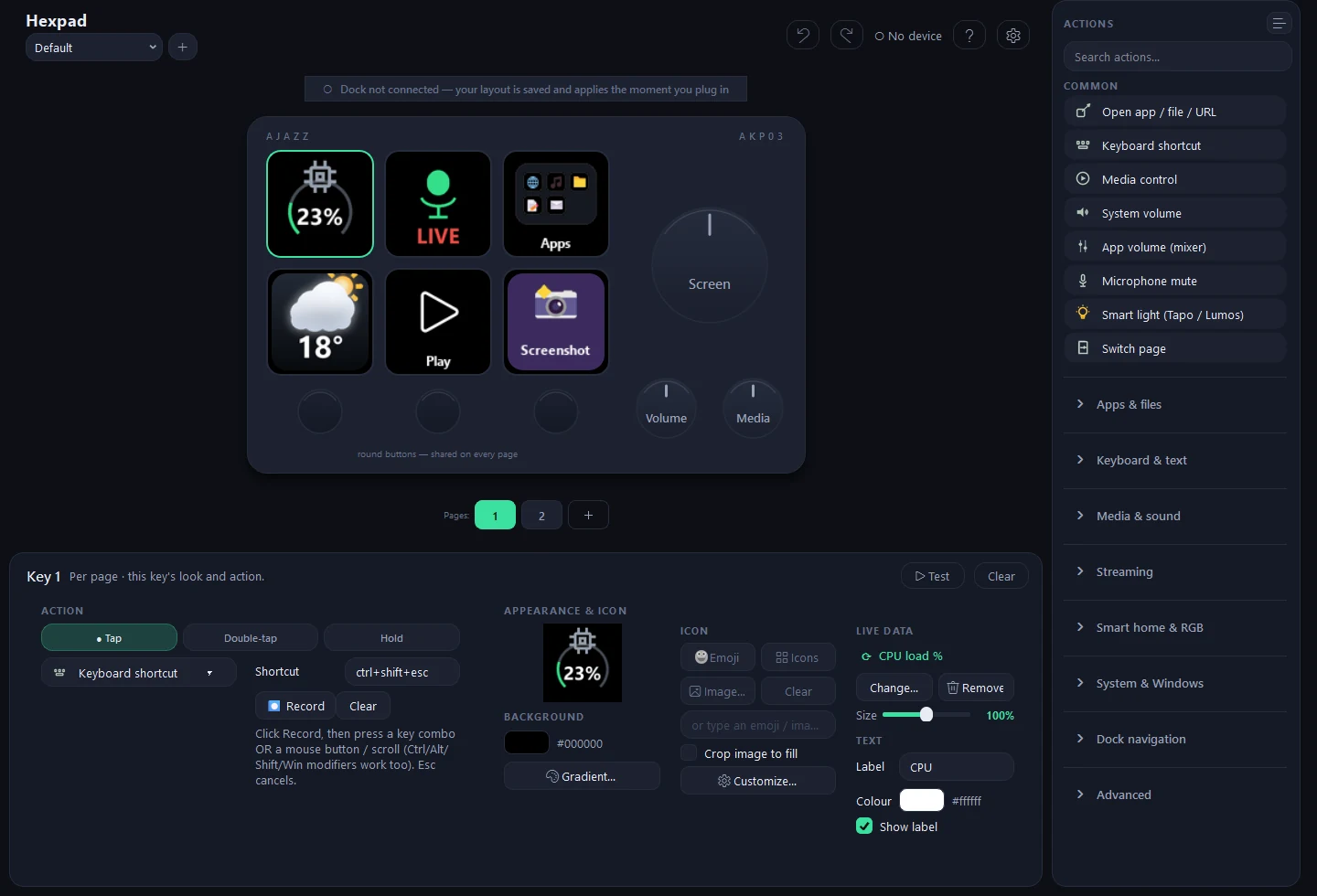
The Hexpad configurator: the dock drawn in the middle with its keys and knobs, the selected key's settings below and the list of actions on the right
The configurator is laid out like the dock. Click a key or knob, or drag an action onto it. (A demo layout, no dock plugged in.)

What it does

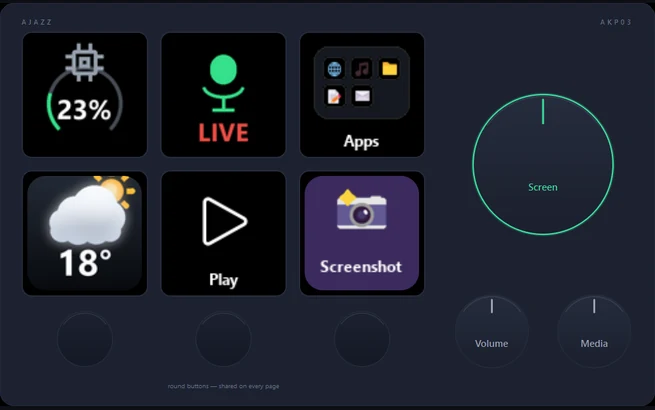
The dock in the configurator with the big knob selected

Every key, button and knob

Six screen keys, three round buttons and three knobs that turn both ways and push. A key can do one thing on a tap, another on a double tap and a third when you hold it. Keys and knobs can change with the page; the round buttons stay the same on every page.

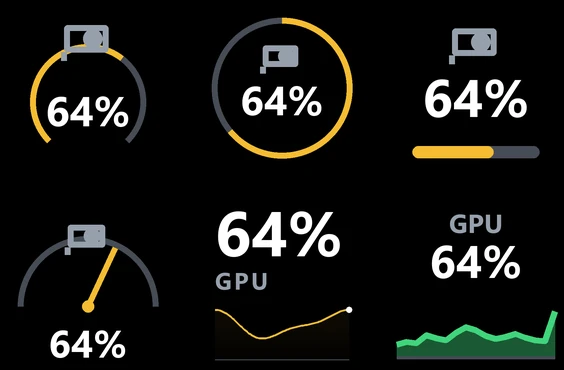
Six live keys showing GPU load in six different styles

Live keys

A key can show a number that updates every second: CPU, GPU and RAM load, temperatures, GPU memory, network, ping, battery, the time, the mic and Caps Lock state, what's playing with its cover, and the weather. Seven tile styles.

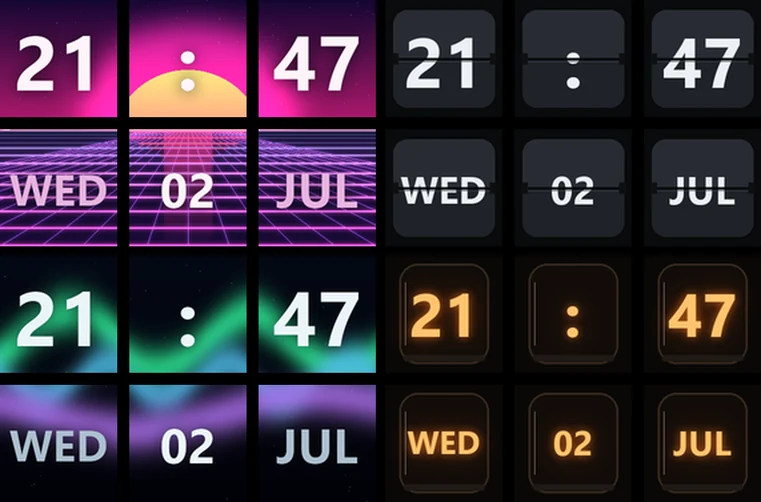
Four idle clock designs: synthwave, split-flap, aurora and Nixie tubes

Idle screens

Leave the dock alone and it dims to a clock spread across all six keys: 16 designs, 10 of them animated, and one that follows the real sun. What's playing and the weather take turns with the clock.

Actions

Apps and files
Open any app, file, folder or web page.
Keyboard and text
Send a shortcut (record it by pressing the keys, or a mouse button), type text, or send Substance 3D Painter shortcuts by key position so they work on any keyboard layout.
Media and sound
Play/pause, next, previous. System volume, or one app's volume, on a knob, with a level bar on the keys. Mic mute. Play a sound clip to any output device.
Streaming
OBS scenes, recording, streaming, the virtual camera and source volume, over OBS WebSocket.
Smart home and RGB
Tapo smart bulbs straight over Wi-Fi with your TP-Link account. RGB colours, effects and brightness through Prisma.
Windows
Lock, sleep, screen off, monitor brightness over DDC/CI, and quick actions like emptying the Recycle Bin, Task Manager or a screenshot snip. Discord mute, deafen and voice volume through your own Discord app ID.
The dock itself
Pages, folders with their own pages, profiles and the dock's brightness. A profile or page can switch by itself when a given app comes to the front.
Advanced
Multi-step macros, toggles that change their look, HTTP requests for webhooks, timers and stopwatches.

Also: 22 key-press and 6 folder animations · 1,906 emoji, Fluent icons or your own pictures, cropped in the app · one picture or an animated GIF across all six keys · hold the middle round button to switch the dock's screen off · undo and redo · backups, export and import · display calibration · unplug the dock and plug it back in, and it carries on

Install

Unzip and run: no installer, no Python.

  1. Download Hexpad-2.0.0.zip (69 MB) and unzip it anywhere.
  2. Run Hexpad\Hexpad.exe and plug in the dock. Hexpad lives in the tray: right-click its icon for the configurator and Start with Windows.

Needs Windows 10 or 11 and an Ajazz AKP03E (USB ID 0300:3002), the only dock it supports. Hexpad runs with administrator rights so it can read CPU and GPU temperatures: Windows asks when you start it by hand, the start-with-Windows task doesn't. SmartScreen may warn, because Hexpad isn't signed: More info › Run anyway. The weather comes from Open-Meteo. Settings are a plain JSON file in %APPDATA%\AjazzDock, so they stay when you replace the folder with a newer version.

Found a bug, or have an idea? Tell me on GitHub. To hear about new versions, follow the releases feed (RSS) or watch the repository's releases on GitHub.

Or build it from the source

With Python 3 installed, download the source, unzip it, open PowerShell in that folder and run:

py -3 -m venv .venv
.\.venv\Scripts\python.exe -m pip install -r requirements.txt
powershell -ExecutionPolicy Bypass -File .\build.ps1
powershell -ExecutionPolicy Bypass -File .\install.ps1

That builds the Hexpad folder with Hexpad.exe, copies it to %LOCALAPPDATA%\Hexpad, adds Start menu and desktop shortcuts, starts it with Windows and opens it. uninstall.ps1 removes the app and keeps your settings.